Wed 2 Aug 2006

Fire3 by AlphaPlugins.com is a unique tool for creating fire. Fire3 allows you to add fire to different objects, layers or selected areas. It can also create various transition effects.
Wed 2 Aug 2006
Fire3 by AlphaPlugins.com is a unique tool for creating fire. Fire3 allows you to add fire to different objects, layers or selected areas. It can also create various transition effects.
Fri 28 Jul 2006
We can use the Median filter to smoothen the edges of objects with a transparent background. Look at the following example of a rasterized object:

We can smoothen the edges of this object by selecting in the menu Filter / Noise / Median… and entering a value of 20 pixels:

This works fine when the object only has one color, however with most objects that’s not the case (like in the example below) and that’s when we need to use a mask.
- First hold down the Ctrl key (command key on the Mac) and click on the object’s thumbnail in the layers palette (A) which will automatically select the complete object.
- Release the Ctrl key and click on the Create a Mask icon at the bottom of your layers palette to create a mask based on this selection (B). After this you will notice that the mask has a double border (C), which is exactly what we want if we want to apply the Median filter.
- Continue by applying the Median filter with a value of 20.

And as a result the edges of the image will be smooth as shown in this example:

A similar technique can be found in our Smoothen Edges tutorial.
Wed 26 Jul 2006
Fri 14 Jul 2006
Lunacore Photoshop Training added 3 new tutorials in which we learn how to use specific tools and techniques;
- how to create animations in ImageReady
- using masks to create the illusion of depth
- how to create a 3D looking texture from scratch in Photoshop
- using the Liquify tool to add randomness to an image
- an example of how we can use the mysterious Maximize filter
- manually adding shadows and highlights to objects to create the illusion of depth
- using the Median filter to add round corners to a mask
- moving layers into layers groups and getting rid of redundant masks
- using two identical objects to create the illusion of depth without using a layer style
- etc
 Animated Plane Flying Through Clouds
This Photoshop tutorial explains how to place a plane in some clouds and how to create the illusion of depth. Later in this tutorial we’re going to use this plane to create a short animation in ImageReady.
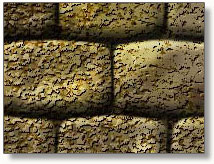
A tutorial that shows how to create a stone texture and how to use this same texture to create a stone wall. The same texture can also be used as to create a stone floor.
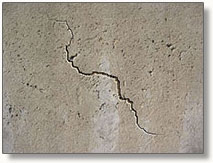
In this tutorial we learn how to add a realistic crack to an existing stone texture.
Mon 10 Jul 2006
 Photoshop Guys Scott Kelby, Dave Cross and Matt Kloskowski share the following subjects in the 38th episode of Photoshop TV:
- Change the impact of a two-model photo by duplicating, resizing and blurring
- How to customize the Web Photo Gallery in Adobe Bridge to use your own logo
- Creating an effect in camera RAW and applying your finishing touches in Photoshop
- A sneak peak from behind the scenes of Adobe Live! in Amsterdam
To-Do List:
- Take a look at Photo Kit Color 2.0 from Pixel Genius
- Grab a tutorial for every software application you can think of at Pixel2Life.com
- Check out the Digital Landscape Workshop series at digitallandscape.org
Fri 30 Jun 2006
 FastStone Capture is a powerful, flexible and intuitive screen-capture utility that can be very useful for all Photoshop users on the Microsoft Windows platform.
In previous versions of Photoshop for Windows it was possible to capture a single window by using the key combination Alt+PrintScreen, which would copy the result to the clipboard.
Photoshop allows you to create a new document based on the content of the clipboard by selecting in the menu File / New. Photoshop then automatically adjusts the height and width according to the size of the screen capture that was placed on to the clipboard. In the document itself it’s then just a matter of pasting the content of the clipboard (Edit / Paste or Ctrl+V) inside the current document.
Photoshop CS2 however doesn’t allow to capture a single window; the key combination Alt+PrintScreen will copy the complete screen instead. The only way to copy a window in Photoshop is to use a special screen capture utility like FastStone Capture.
Mon 26 Jun 2006
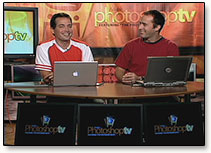 In the 36th episode of Photoshop TV special guest Felix Nelson joins Matt Kloskowski.
Subjects
- how to make a realistic, watery reflection of a building, using transform and the warp filter
- Part 2 of Matt’s trip to Bert Monroy’s digs. Take a look at how Bert manages his workflow
- How to create a flock of birds using a custom brush
- Retouching tip for making a model’s nose appear smaller
To-do list
- Check out Terry White’s Creative Suite Podcast at creativesuitepodcast.com
- Grab some great tutorials from Dr. Photoshop at dr-photoshop.com
- Get the monthly creative newsletter from Jay Nelson at design-tools.com
Mon 19 Jun 2006
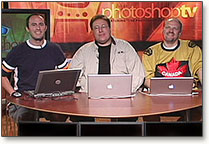 In the the 35th episode of Photoshop TV, Scott Kelby, Matt Kloskowski and Dave Cross present the following subjects;
- a tutorial for turning a photo into an illustration using the pen tool
- a technique for changing an object’s background while keeping natural shadows
- how to make a realistic studio background for your photo’s model using channels
- how to order Kodak Prints with Bridge and Photoshop Services
- a tip for presenting and selling your photos online using Bridge and PhotoManager
- interview with Bert Monroy
Mon 12 Jun 2006

Another round for the photoshop guys Scott Kelby, Dave Cross and Matt Kloskowski in this 34th episode of Photoshop TV.
So what do they have in store for us this time?
- A different method to make fluffy clouds
- Using Bridge with the Iron Mountain photo backup service from Photoshop Services
- Tutorial for photographers to correct dark edges using Lens Correction (download)
- How to straighten up a crooked photo
- New contest and previous winner
Special reports:
- Scott at Adobe Live in Stockholm
- Part 2 of Matt’s visit with the folks at Adobe Systems Incorporated
This Week’s To-Do List:
- Layers magazine InDesign Advantage Center
- competitions at PhotoshopContest.com
- Stay up to date at VersionTracker.com
Fri 9 Jun 2006
If you save an image in Photoshop, flatten it and save it by accident, then you’ll notice that the regular undo command Ctrl + Z (Command + Z on the Mac) doesn’t have any effect.
Luckily there is a different solution to undo the mistake, which is to use Alt + Ctrl + Z (Option + Command + Z on the Mac) instead, also known as Step Backward.
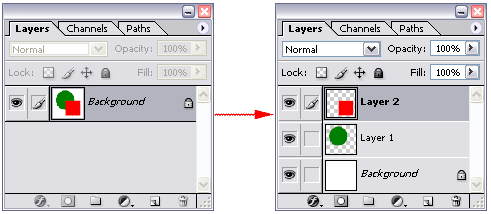
|
|
You are currently browsing the archives for the Photoshop category.