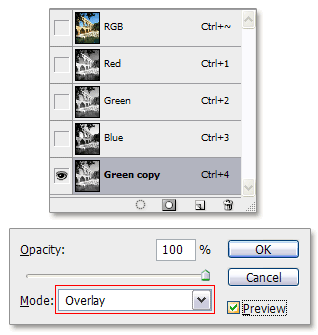
Channel BlendingThe are no blending options in the channels palette, but is it still possible to blend? Yes, you can use Image / Apply Image, but I would like to show a different way.
In this example I have a copy of the green channel at the bottom of my channels palette. To blend this copy in overlay, I need to select the channel first with Ctrl+A (Command+C on the Mac) or in the menu: Select / All.

I then copy the image with Ctrl+C and paste it with Ctrl+V (Command+C and Command+V on the Mac).
As expected nothing happens. But it does allow us the use the fade command: Edit / Fade….

The fade command allows us to set the blending mode to overlay and after clicking on OK we’re blending the channel in overlay mode.

Note: blending channels can be very useful when you use channels to extract images from their background.

Picutel Smart Resize is a Photoshop plugin (only Windows supported for now) for advanced resizing of photos. Unlike ordinary resizing, Smart Resize can change the proportions (aspect ratio) of an image without introducing artifacts such as unnaturally tall or short people. This is accomplished by only rescaling the least interesting or important regions of the photo, leaving the more interesting regions untouched.

An example can be seen in the following video. At the top smart resizing is used, while ordinary resizing is shown at the bottom:


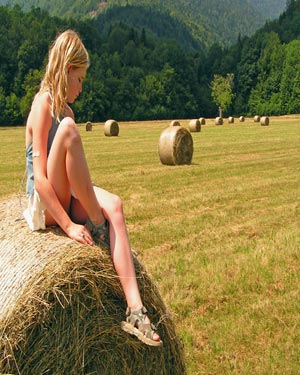
I’ve tested this plug-in with the following image:

Original


Photoshop ResizeI resized the image in Photoshop with Image/Resize, deselected Constrain Proportions and lowered the width from 500 to 300 pixels.
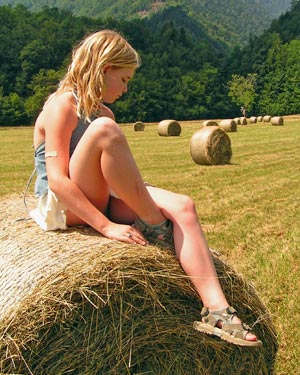
As you can see, the main subject is distorted.


Smart ResizeI used the same original, but this time I resized with Picutel Smart Resize after making a selection around the girl first.

This time no distortion of the main subject. Slight distortions in the background can be easily corrected with cloning, but wait…. there is more.


Smart Resize ExtraYou can even take it a step further and make multiple selections. In this example I included the big roll of hay in the background in my selection:


It doesn’t happen so often that you come across a plug-in that is actually useful. It’s not the ultimate solution, because in some cases you still need to do some cloning in the background, but regardless of this it’s still an impressive product and I’m looking forward to future developments.

Ever wondered why you don’t hear sound when you play a video in Photoshop CS3 Extended?
To play the video with sound, you need to hold down the Alt key (option key on the Mac) while clicking on the play button:

Video Sound in Photoshop CS3 Extended

Mitsubishi Electric Research Laboratories has developed a new way of resizing images (media retargeting).


A short article can be found here.

Lunacore’s forum

Photoshop User ForumThe original Lunacore forum is moved to a domain called Photoshopuserforum.com and will continue as a separate identity. This new forum will however have a section for all Lunacore related questions.

The main reason for the move is to increase the forum’s popularity, which has gone downhill the last few months, while strangely the site’s traffic has been constant and high.

Changes will also take place on the forum itself and one is already finished; we have turned a standard template into a darker template, which according to recent polls should please the majority of our visitors. Darker themes are also a trend in software applications; Cinema 4D, Vue d’Esprit, Adobe Bridge, Adobe After Effects, Adobe Lightroom, Adobe Encore, etc.
We have tried to keep the contrast between colors low and long term tests have proven that the theme doesn’t cause any eye strain, it probable produces even less eye strain than the average black on white forum. Over time we will update the theme were needed.

Long term plans are:

- better and more promotion of the forum, basically to make it appear on page #1 when people type in Google photoshop forum (but we strive for 1st place)
- more challenges, tips and possibly contests
- more freedom when it comes to avatar, signature and attachment sizes and number of attachments
- continuing to provide a reliable and fast forum

We welcome you at our new forum at Photoshop User Forum (PUF) .

Tutorials

Lunacore will continue to provide you with new tutorials and several are planned to be released the next few months. We will also continue to provide you with other content as well and also the blog will get more attention. At one point we might decide to give the blog it’s own identity too, but nothing is final yet.

Latest addition

Book review: Drawing From Line To Life by Mike Sibley

Digital-MakeoversPhotoshoproadmap has collected for you some links to great makeover techniques and plugins.

Check it out here.

Just a short selection of Adobe articles that can help you to troubleshoot some problems you might have with Adobe Photoshop CS3:

Adobe ImageReady CS2 feature location guide for Photoshop CS3

Troubleshoot system errors or freezes in Adobe Photoshop CS3 on Windows XP

Troubleshoot system errors or freezes in Photoshop CS3 on Mac OS

Optimize performance of Photoshop CS3 on Windows XP and Vista

Optimize performance in Photoshop CS3 on Mac OS

Troubleshoot installation problems in Adobe Photoshop CS3 on Windows XP

Troubleshoot installation problems in Adobe Photoshop CS3 on Mac OS X

Photoshoproadmap PuzzlePhotoshoproadmap, always good for unique tutorials with lots of detail, has released yet another great tutorial called “Create a colorful Print-and-Play puzzle for your kids with Photoshop”.
The 5 page tutorial explains how to create glossy looking shapes and text, how to add proper shadows, how to build the puzzle board and its pieces and how to add some finishing touches. You can even download two complete puzzles at the end of the tutorial and make your kids happy in no time!

To be able to select a single color with the Magic Wand tool, you need to use 3 different settings:

Eye Dropper tool  options1. Select the Eye Dropper tool and set the the Sample Size to Point Sample. This will not only have an effect on the Eye Dropper tool, but also on the Magic Wand tool.

2. Select the Magic Wand tool and set the Tolerance to 0.

Magic Wand options

3. Uncheck the Anti-Alias option.


Example 1
Example 1

Example 2
Example 1

Example 3
Example 1

Total Training for Photoshop CS2Lunacore has released a detailed review of the Total Training’ Photoshop CS2 video course.

This review is split into 7 sections:

- Introduction
- What you get
- The presenter
- Installation
- The Interface
- Content and presentation
- Conclusion

Check it out here.

Next Page »