Fri 17 Feb 2006
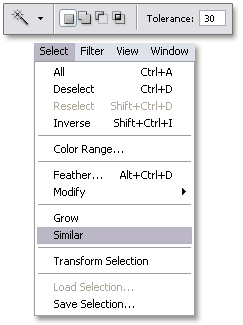 The Similar command works with selections and allows you to include pixels throughout the image, not just adjacent ones, falling within the tolerance range.
What few people know is that you can actually set this tolerance range and it’s not in the most obvious place, because it surprisingly the Magic Wand tolerance settings that is being used for that.
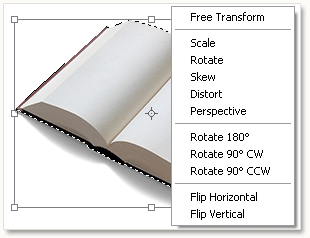 If you want to free transform an image or part of it, use the shortcut Ctrl + T ( Command + T on the Mac) and right click inside the bounding box ( Control + click on the Mac) to bring up a window in wich you can select your prefered transformation.
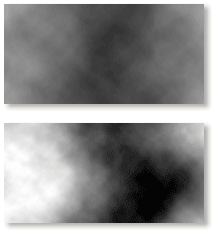 If you prefer more contrast with Photoshop’s clouds filter, then try this; hold down the Alt key (options key on the Mac) and select Filter / Render /Clouds. This also work with Difference Clouds.
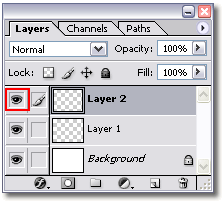 You can hide all layers in your layers palette, except for the active layer, by holding down the Alt key (option key on the Mac) and clicking on the eye icon in front of the active layer.
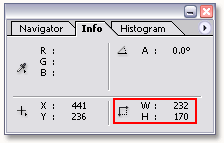 If you want to crop an image using a specific size then you might think about editing the values for width and height in the option bar when the crop tool is active. The downside of this method is that it will resize your crop selection to meet the width and height that were entered.